 Weather app for Windows 10 and 11
The weather, right next to your clock.
SkyCast sits in the lower-right corner of your screen. It finds your city on its own, shows the forecast for today, the next 7 days and the next 30 days, and waits in the system tray when you close it.
- No account needed
- Installs without admin rights
- 16 languages
At a glance
Everything a weather app should do, nothing in your way.
-
Location
Found for you
SkyCast detects your city when it starts. If it can't, you pick your city from a search box.
-
Forecast
Today, 7 and 30 days
Hour by hour for today, the week ahead, and the month ahead.
-
Cities
As many as you like
Add places anywhere in the world and flip through them with the arrows.
-
Placement
Lower-right corner
Always opens in the lower-right corner, clear of the taskbar.
-
Tray
Closes to the tray
The × button hides it to the tray. One click brings it back.
-
Startup
Starts with Windows
Ready as soon as you sign in. One switch turns it off.
-
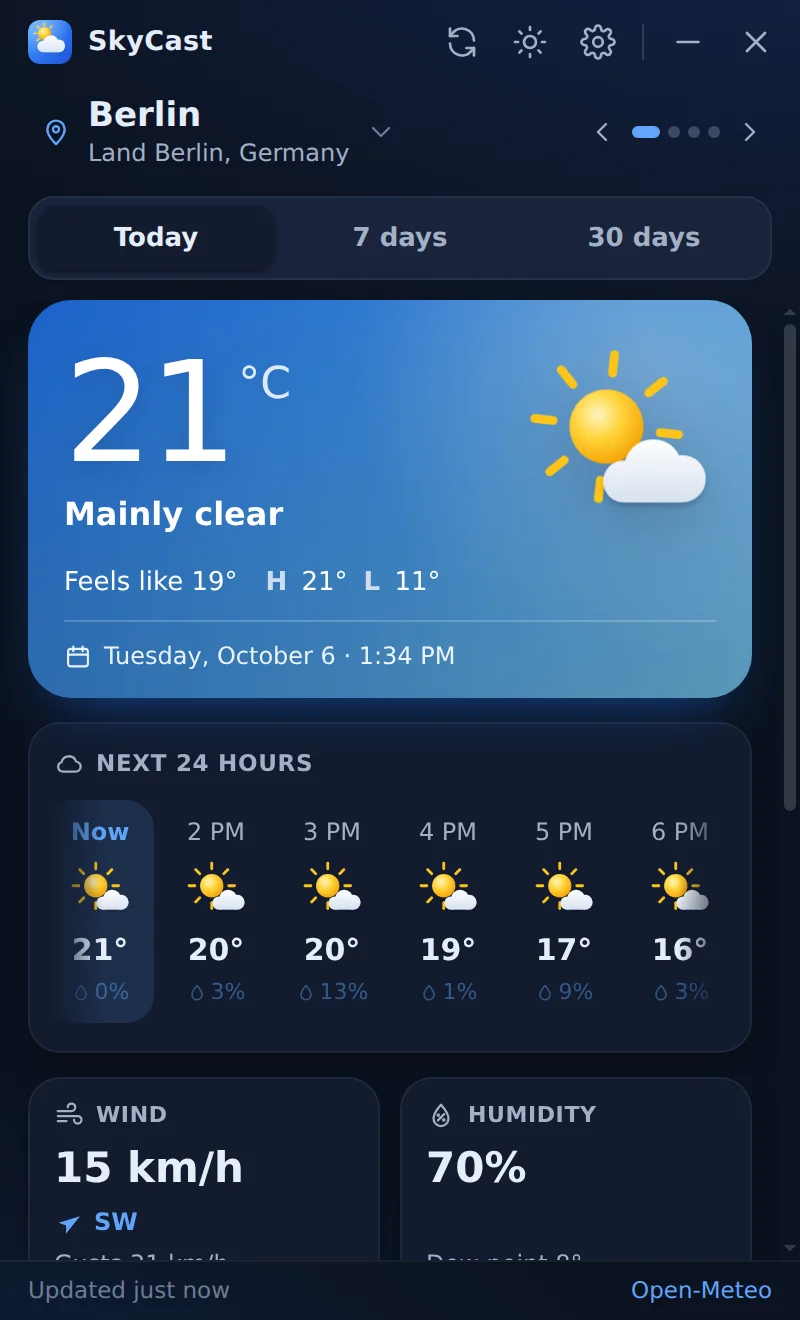
Theme
Light and dark
Switch with the sun and moon button, or follow Windows.
-
Languages
16 languages
English and the most widely spoken languages in the world.
Forecasts
Today, this week, this month.
These are the same three tabs you'll find in the app. Click through them.
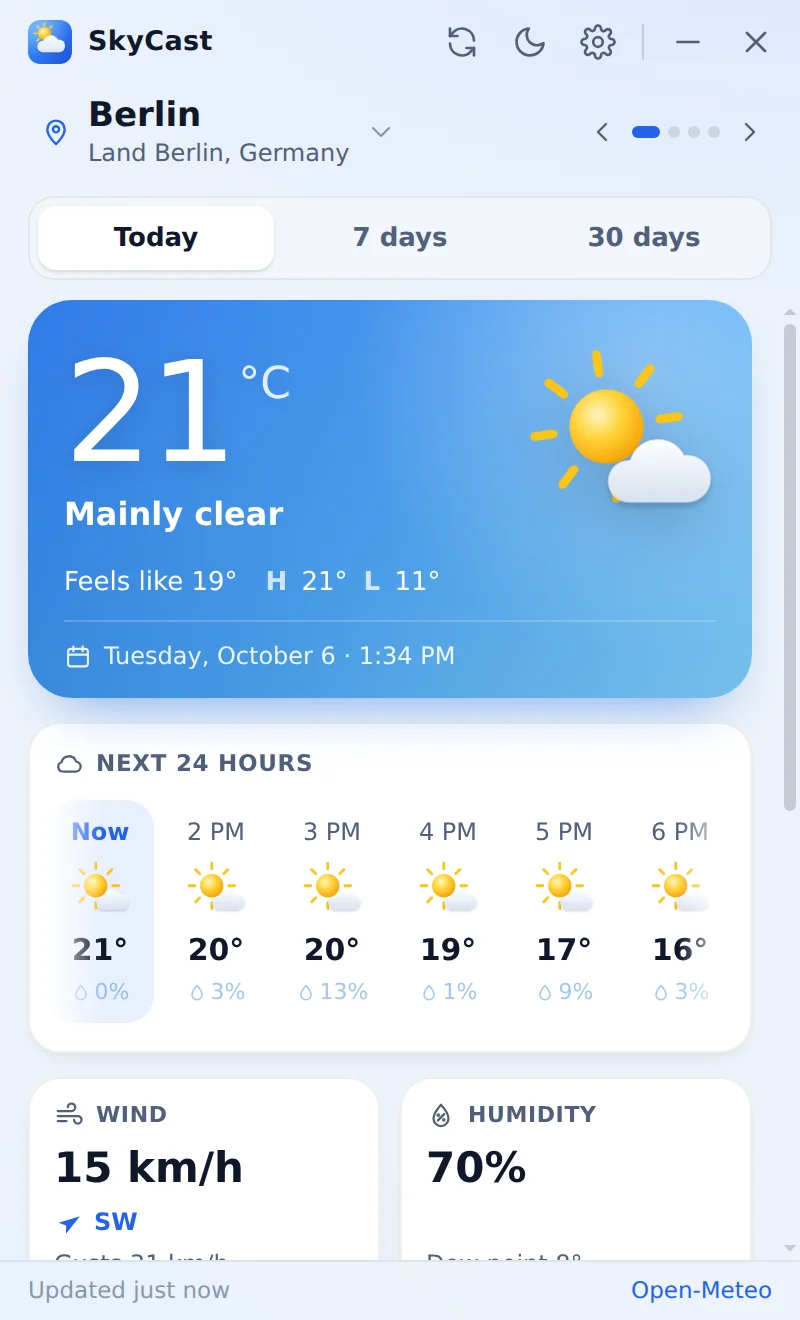
Right now, and the next 24 hours
The temperature and what it feels like, today's high and low, and an hourly strip that marks sunrise and sunset.
- Wind, humidity, UV index, rain, pressure, visibility and a daylight arc
- The card's colour follows the sky: sunny, cloudy, rain, snow, day or night
- Updates itself every 30 minutes, or every 15, 60 or 120 if you prefer
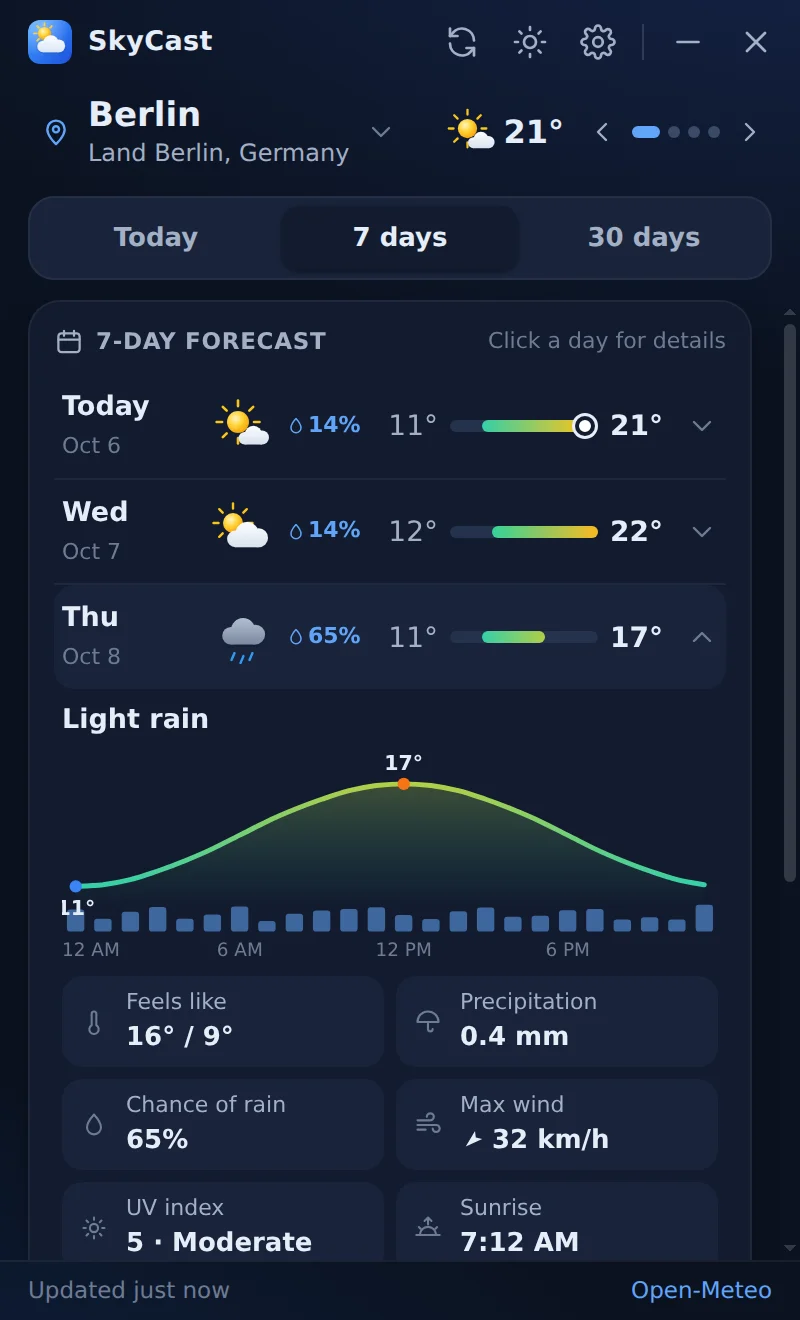
The week at a glance
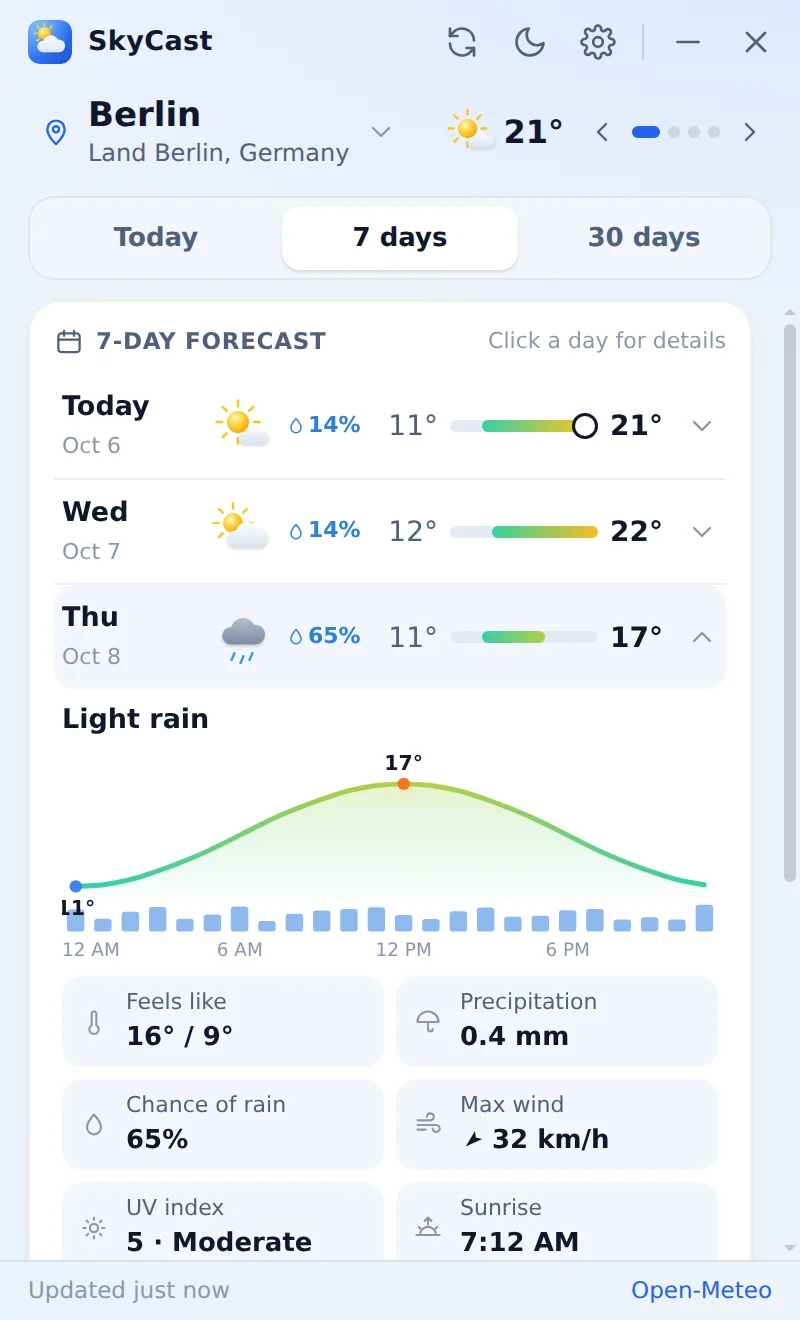
Each day's low and high on a colour bar, with the chance of rain. Click a day to see how it unfolds hour by hour.
- Hourly temperature chart with rain for any day
- Feels like, precipitation, wind, UV index, sunrise and sunset
- Today's marker shows where the temperature is right now
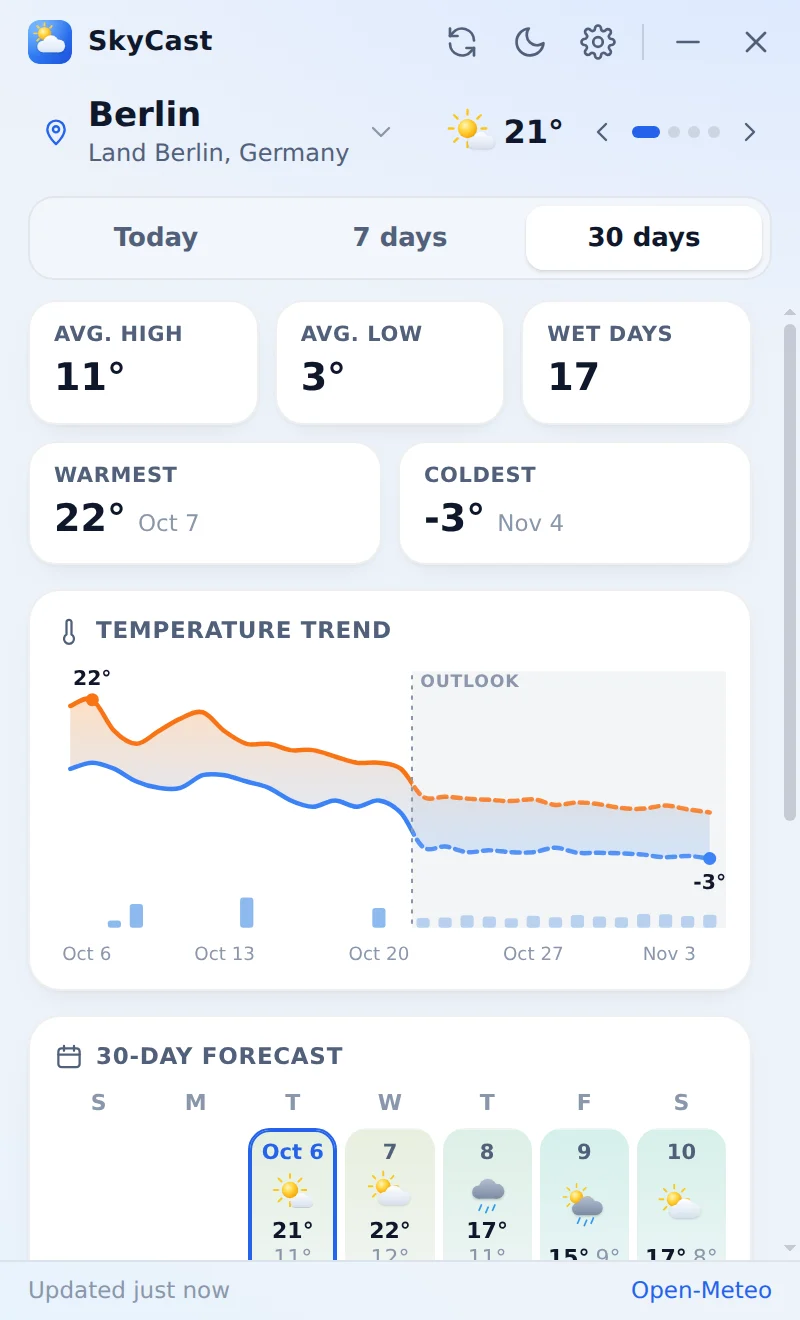
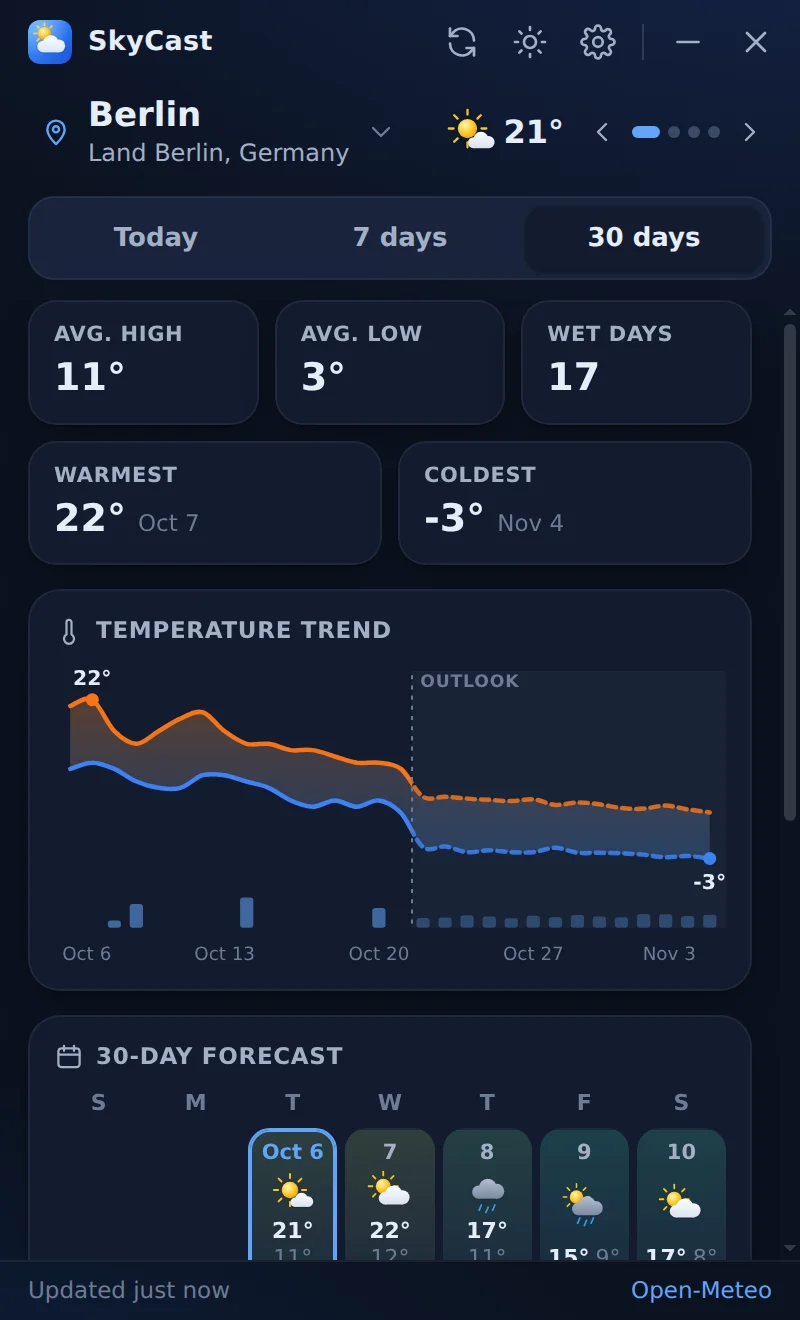
A month ahead, clearly labelled
A summary of the next 30 days, a temperature trend and a calendar you can click for details on any day.
- Average high and low, wet days, the warmest and the coldest day
- Days 17 to 30 are a long-range outlook and are marked as one
Lives in the corner
Close it, and it's still there.
SkyCast opens in the lower-right corner, right above the clock. Closing the window doesn't quit the app: it waits in the system tray until you need it again.
- Click the tray icon to show or hide SkyCast. Right-click it to refresh, open Settings or quit.
- The icon shows the temperature, coloured from icy blue to hot red.
- Starts with Windows. Turn it off in Settings, in the tray menu or in Task Manager.
Tray icon colours
Make it yours
Your cities, your units, your language.
Keep every place you care about one click away, choose how temperatures, wind and rain are shown, and use SkyCast in the language you think in.
-
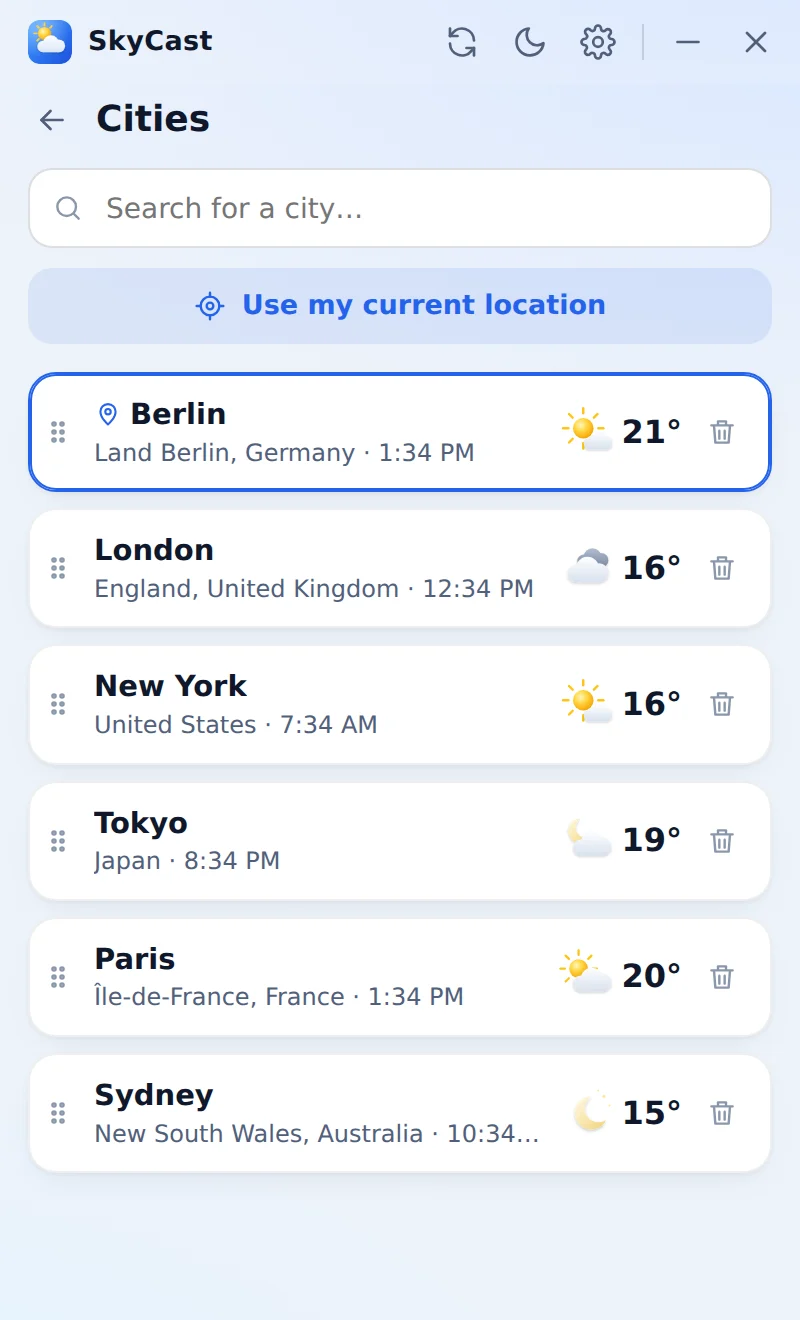
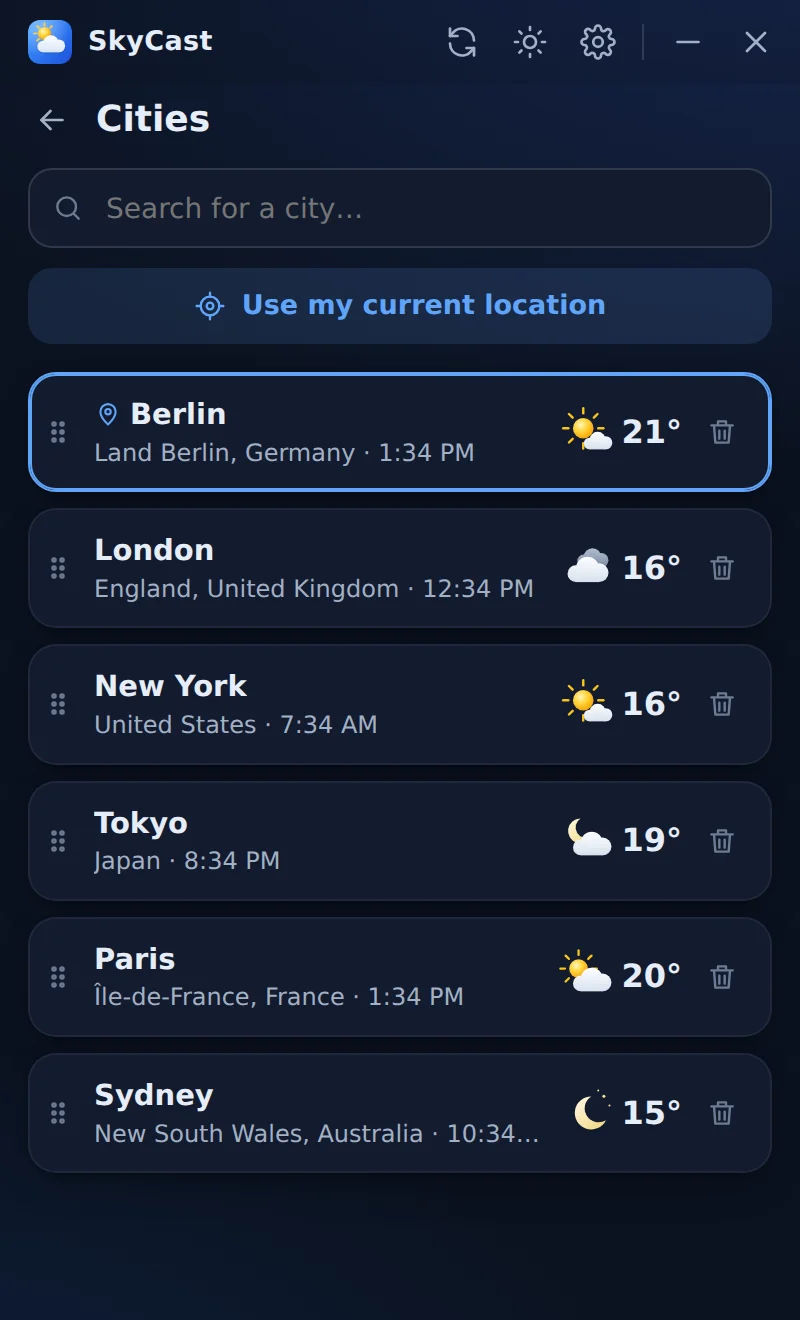
All your citiesLocal time and temperature for each. Drag to reorder. -
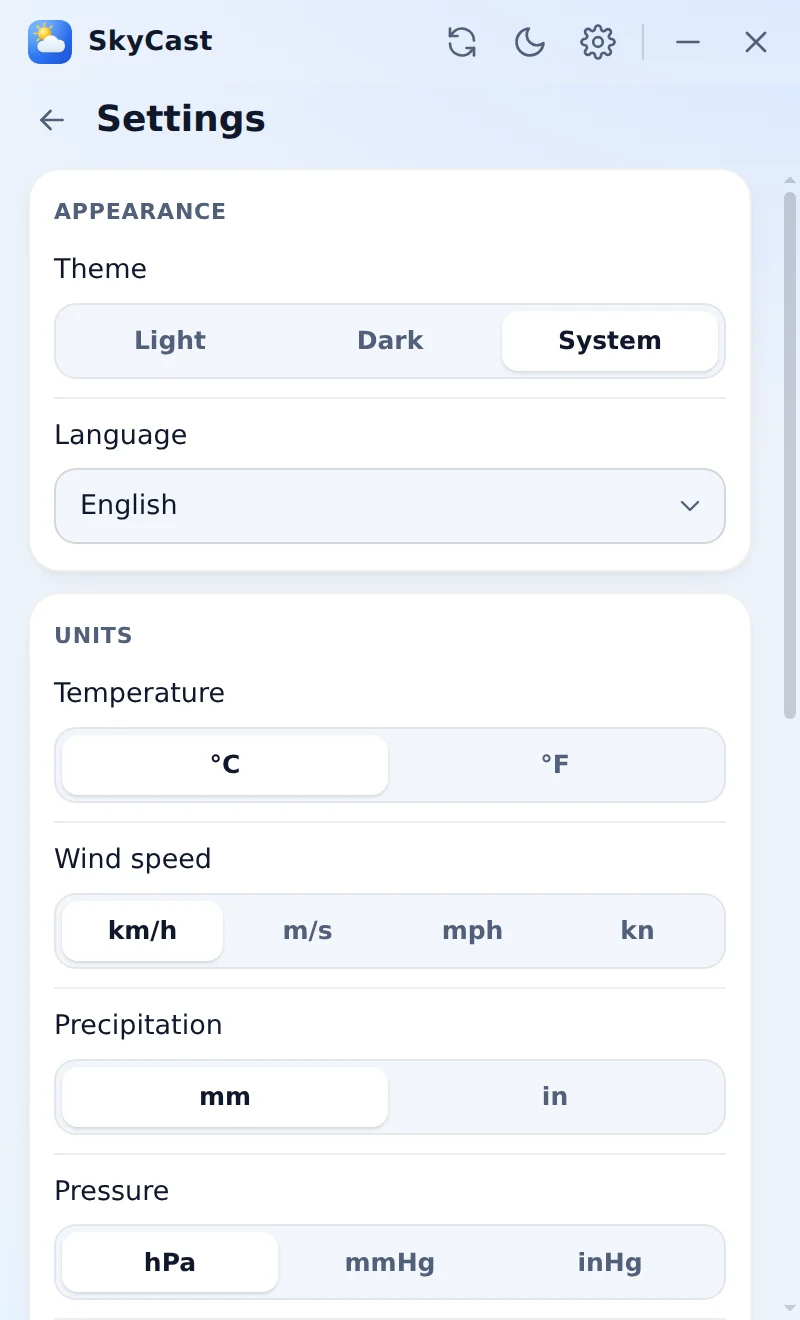
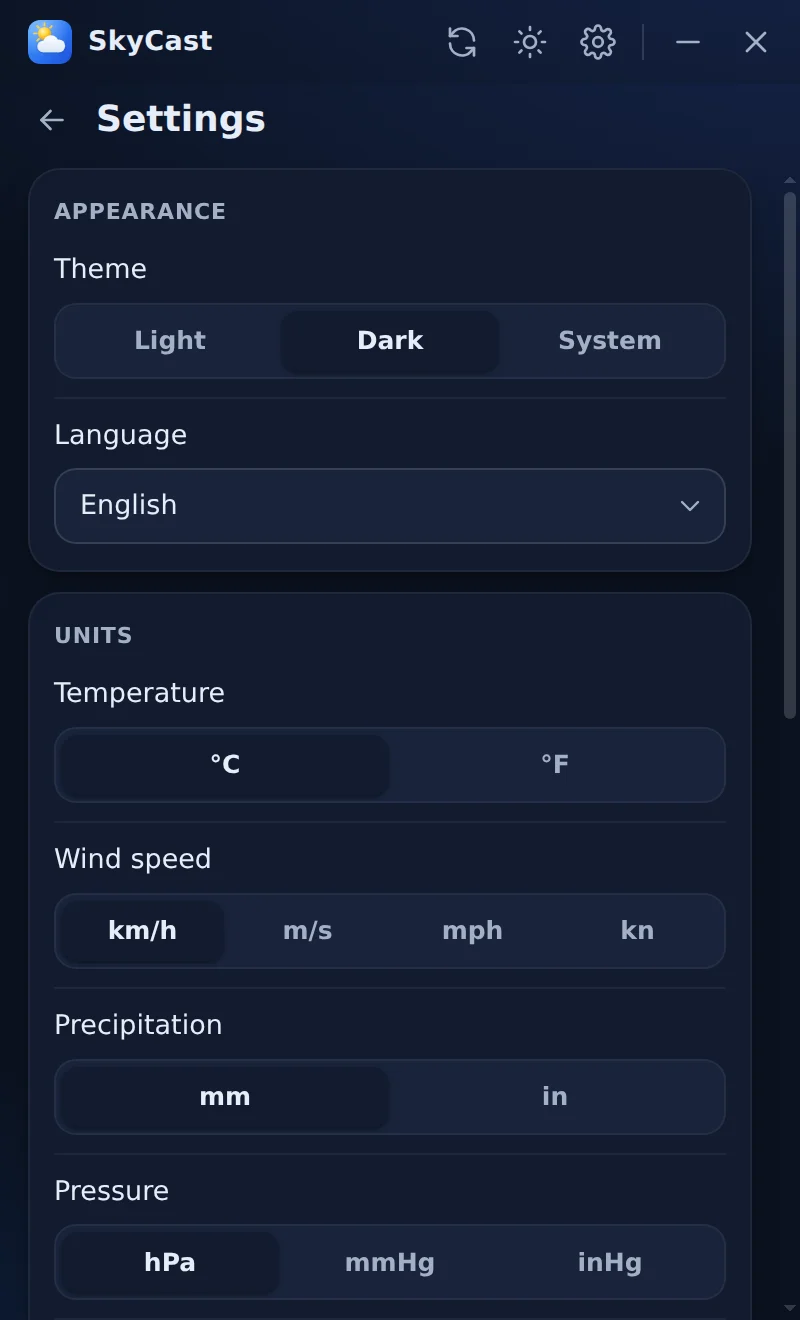
Your units°C or °F, km/h, m/s, mph or knots, mm or inches, hPa, mmHg or inHg, 12- or 24-hour clock. -
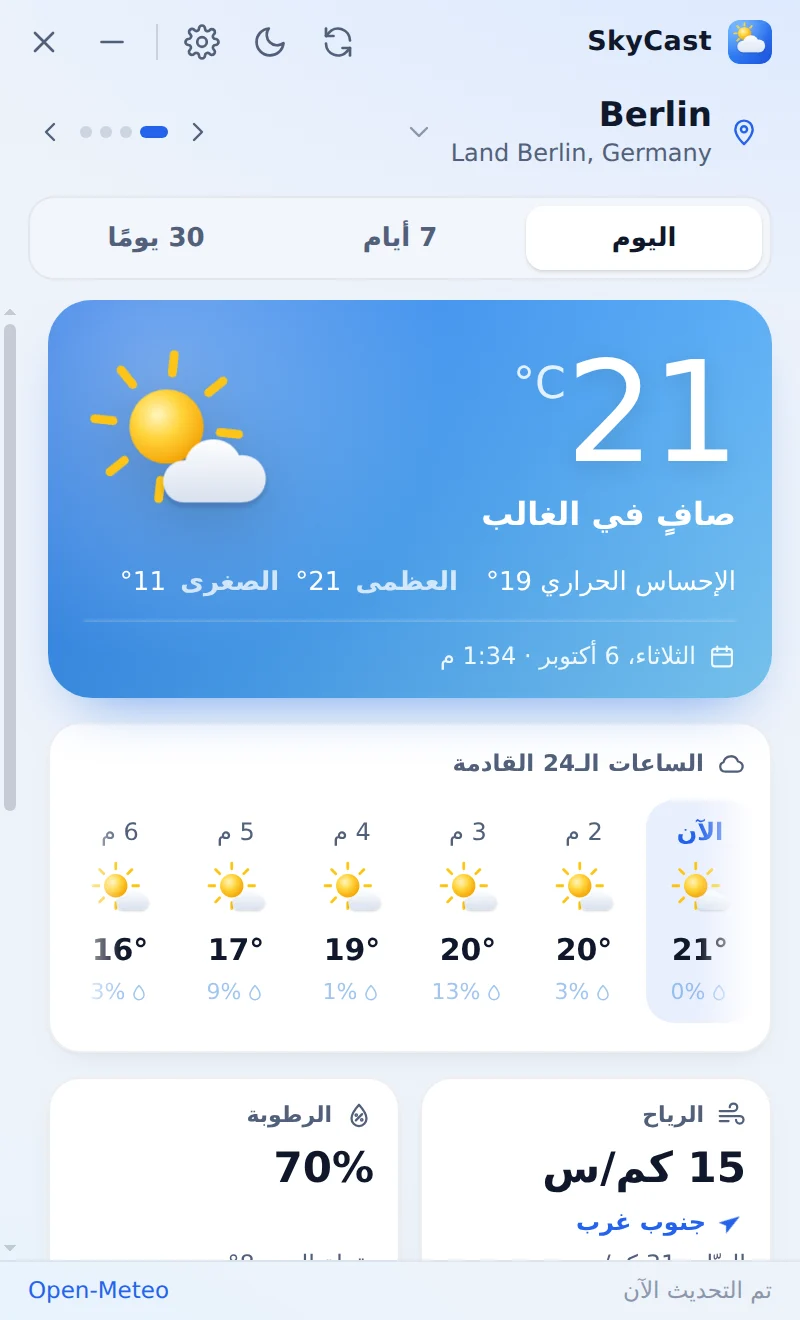
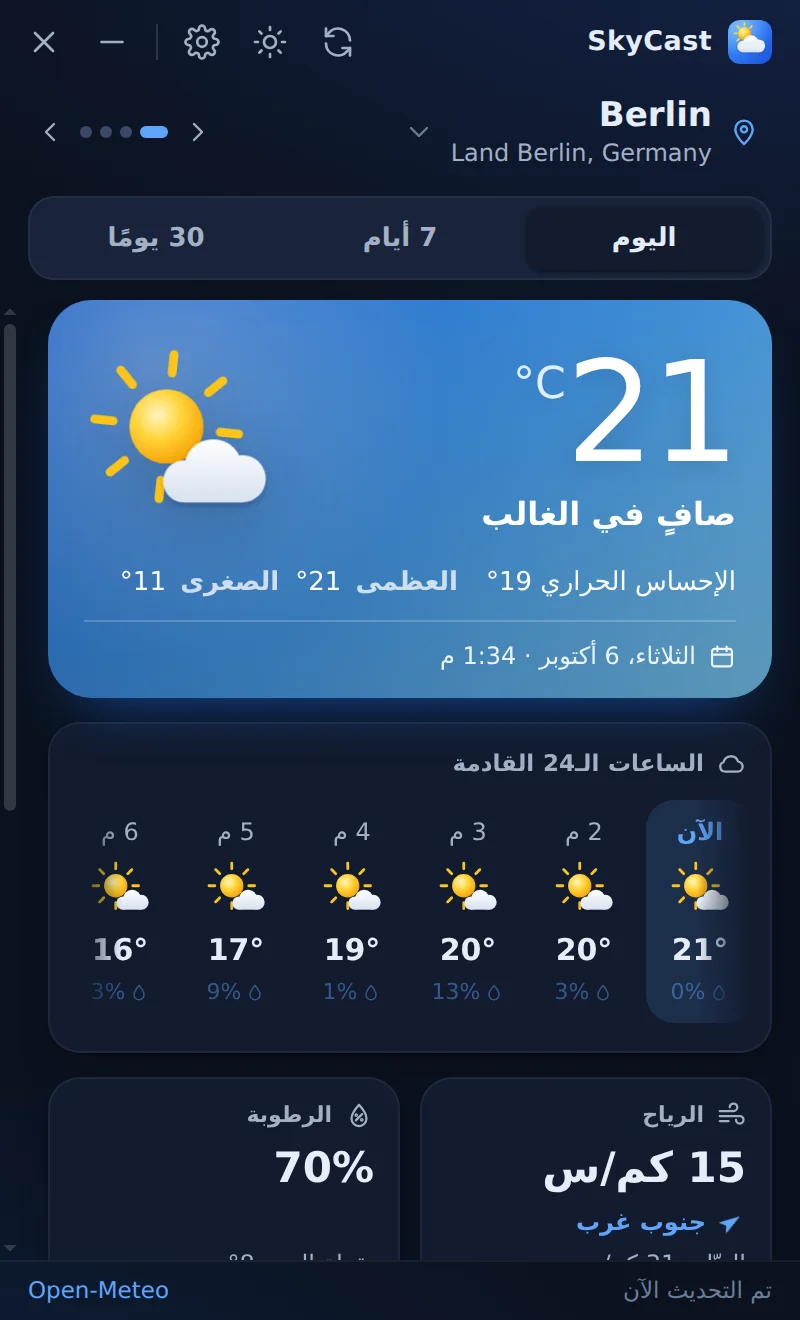
العربيةArabic and Urdu get a full right-to-left layout. -
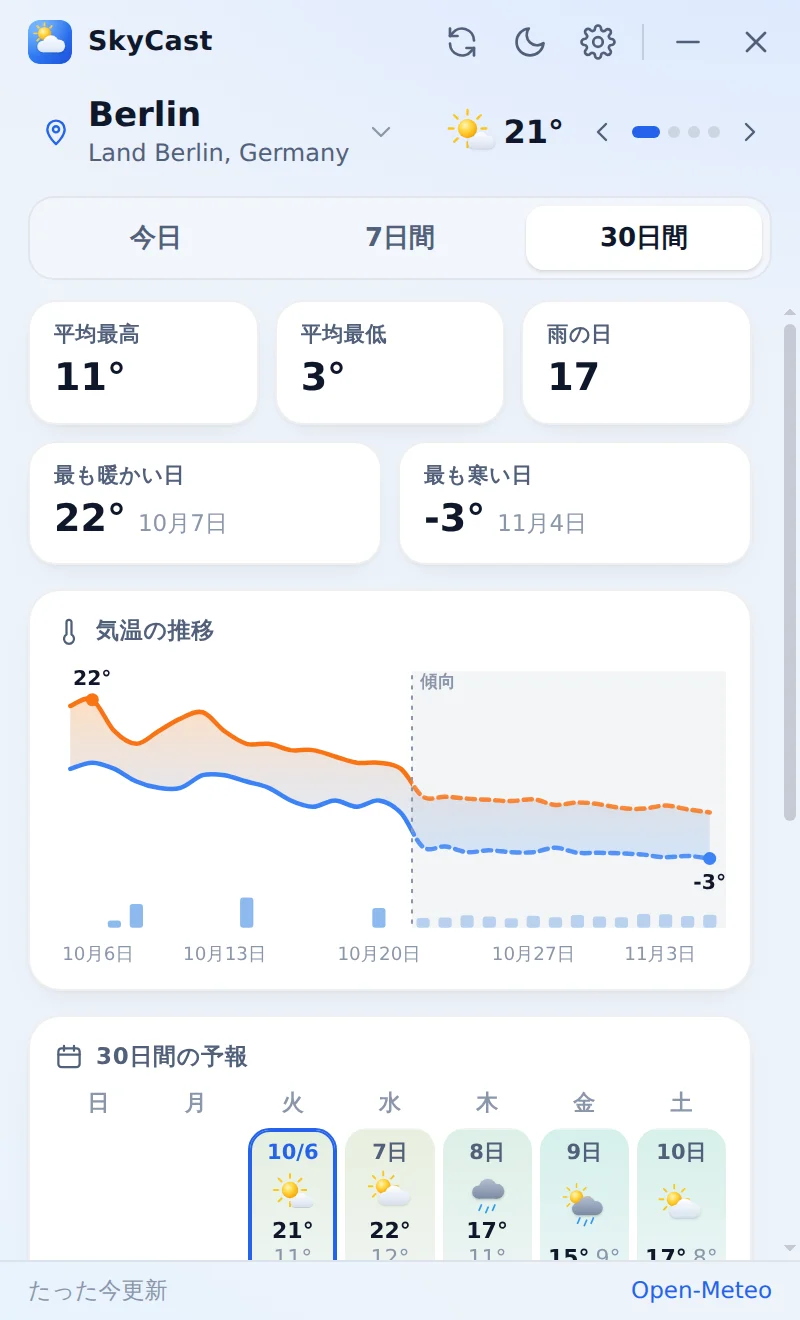
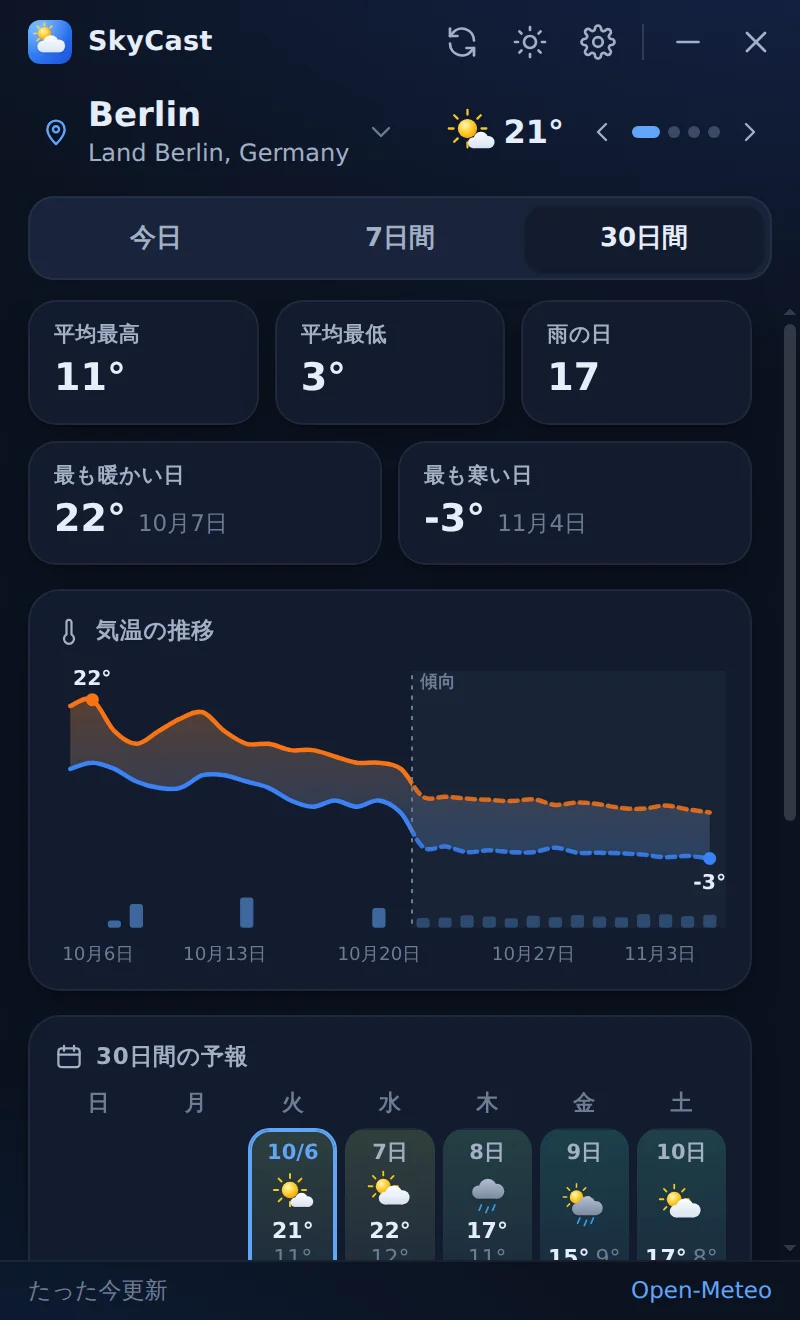
日本語Dates, numbers and units follow each language.
16 languages
English is the default. Switch any time in Settings.
- English
- 中文
- हिन्दी
- Español
- العربيةRTL
- Français
- বাংলা
- Português
- Русский
- اردوRTL
- Bahasa Indonesia
- Deutsch
- 日本語
- Tiếng Việt
- Türkçe
- 한국어
About the 30-day forecast
Honest about how far ahead it can see.
Detailed weather models reach about two weeks ahead. So SkyCast uses them for the first 16 days and a long-range outlook for the rest, and the calendar marks outlook days with a dashed border.
- 1
- 2
- 3
- 4
- 5
- 6
- 7
- 8
- 9
- 10
- 11
- 12
- 13
- 14
- 15
- 16
- 17
- 18
- 19
- 20
- 21
- 22
- 23
- 24
- 25
- 26
- 27
- 28
- 29
- 30
Forecastdays 1–16
Open-Meteo's best-match forecast, which combines national and global weather models for your location. Refreshed through the day.
Outlookdays 17–30
The average of 31 runs of the GFS ensemble model; the chance of rain is how many runs agree. If that isn't available: the seasonal forecast, or the average of the same dates over the last five years.
Install
Up and running in a minute.
-
1
Download
Get
Download for WindowsSkyCast-Setup-1.0.0.exe(106 MB). -
2
Run the installer
SkyCast installs for your Windows account in a few seconds. No admin rights needed.
If you see “Windows protected your PC”, click More info, then Run anyway.
-
3
Look down and to the right
SkyCast opens above the clock and finds your city. From now on it starts with Windows.
FAQ
Questions, answered.
What do I need to run SkyCast?
Windows 10 or Windows 11 (64-bit) and about 370 MB of disk space. SkyCast needs an internet connection to download forecasts.
Where does the weather data come from?
From Open-Meteo.com, which brings together forecasts from national weather services. You don't need an account or an API key.
How does SkyCast know where I am?
It asks an IP location service for the approximate location of your internet connection, based on your public IP address. You can turn automatic detection off in Settings and choose your cities yourself.
Windows says “Windows protected your PC”. Is that normal?
Yes. The installer isn't code-signed, so Windows SmartScreen doesn't recognise it yet. Click More info, then Run anyway.
How do I stop SkyCast from starting with Windows?
Switch off Start with Windows in SkyCast's Settings or in the tray icon's menu. You can also turn it off in Task Manager under Startup apps.
How do I close SkyCast completely?
Right-click the SkyCast icon in the tray and choose Quit. The × button only hides the window.
Does it work offline?
SkyCast keeps the last forecast for each of your cities and shows it with an “offline” note until it can update again.
How do I uninstall it?
Open Windows Settings › Apps, find SkyCast in the list of installed apps and choose Uninstall. This also removes it from your startup apps.
Put the forecast in the corner of your screen.
No more opening a browser tab to check the weather. SkyCast is one click away, all day.
Download for Windows